Select Version of EA Desktop:
To create an Excel template:
-
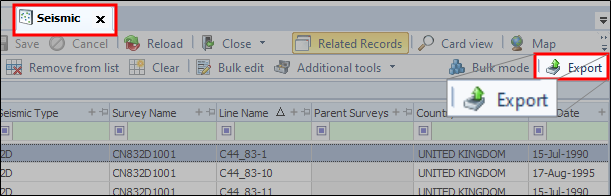
In the Seismic module, click Export .
 Warning:
The contents of the grid will be saved in the file. If you want a blank template, you can clear the table contents before you click Export.
-
The Save As window opens.
-
Navigate to the location you want to save the template and enter a file name.
-
Click Save.
-
After a few seconds The template will open in Excel.
-
Review the column headers and delete the columns that are not relevant to your data.
Note:If you are adding new seismic, you should delete the Seismic ID column. Exploration Archives will generate a Seismic ID automatically.
-
There may be a couple of additional columns you may need to add manually to the template depending on your circumstance:
You can add aliases, make sure that the column header is named "Aliases"
Locations can also be added manually, ensure you name the column "Locations"
 Tip:
Tip:To add multiple aliases or locations to one line, use a comma to separate the names.
-
Enter values in the associated columns for each new seismic item.
-
Save the file and close the spreadsheet.
To create an Excel template:
-
In the Seismic module, click Export .
Note:The contents of the table will be saved in the file. If you want a blank template, you can clear the table contents before you click Export.
-
The Save As window opens.
-
Navigate to the location you want to save the template and enter a file name.
-
Click Save.
-
After a few seconds The template will open in Excel.
-
Review the column headers and delete the columns that are not relevant to your data.
Note:If you are adding new seismic, you should delete the Seismic ID column. Exploration Archives will generate a Seismic ID automatically.
-
There may be a couple of additional columns you may need to add manually to the template depending on your circumstance:
You can add aliases, make sure that the column header is named "Aliases"
Locations can also be added manually, ensure you name the column "Locations"
Tip:To add multiple aliases or locations to one line, use a comma to separate the names.
-
Enter values in the associated columns for each new seismic item.
-
Save the file and close the spreadsheet.
To create an Excel template:
-
In the Seismic module, click Export .
Note:The contents of the table will be saved in the file. If you want a blank template, you can clear the table contents before you click Export.
-
The Save As window opens.
-
Navigate to the location you want to save the template and enter a file name.
-
Click Save.
-
After a few seconds The template will open in Excel.
-
Review the column headers and delete the columns that are not relevant to your data.
Note:If you are adding new seismic, you should delete the Seismic ID column. Exploration Archives will generate a Seismic ID automatically.
-
There may be a couple of additional columns you may need to add manually to the template depending on your circumstance:
You can add aliases, make sure that the column header is named "Aliases"
Locations can also be added manually, ensure you name the column "Locations"
Tip:To add multiple aliases or locations to one line, use a comma to separate the names.
-
Enter values in the associated columns for each new seismic item.
-
Save the file and close the spreadsheet.